
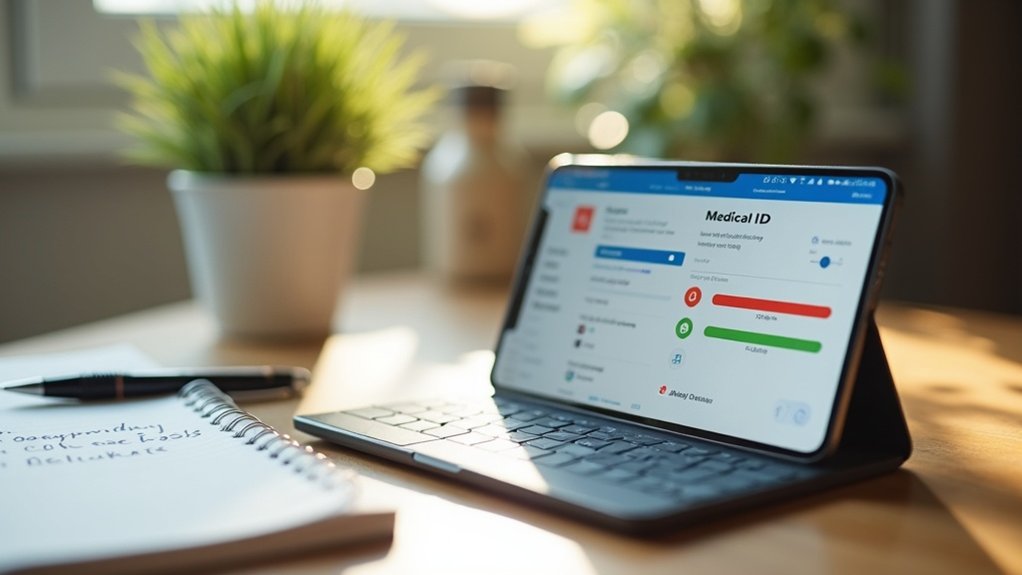
To set up Medical ID on your phone, open the Health app on iPhone or the Safety app on Android. Tap your profile picture and select Medical ID or emergency information. Enter your medical details, including allergies and emergency contacts. Make sure to enable the option to show this info when your device is locked. Keeping this information updated is essential for first responders. If you want to know more about signing up for organ donation or editing contacts, keep exploring!
Key Takeaways
- For iPhone, open the Health app, tap your profile picture, and select “Medical ID” to start the setup process.
- On Android, open the Safety app, sign in, and navigate to Settings to input your emergency medical information.
- Include essential details like medications, allergies, and medical conditions for accurate medical ID information.
- Add emergency contacts from your phone’s contact list to ensure quick access during emergencies.
- Enable “Show When Locked” to allow first responders to access your medical ID easily.
Setting up Medical ID on Iphone
To set up your Medical ID on an iPhone, start by opening the Health app and tapping your profile picture in the upper corner.
To create your Medical ID on an iPhone, open the Health app and tap your profile picture in the corner.
Select “Medical ID” and choose either “Get Started” or “Edit” to input your personal information, including your medications, allergies, and medical conditions.
Don’t forget to add emergency contacts by tapping “Add Emergency Contact” and specifying their relationship to you.
Enable the “Show When Locked” feature, allowing first responders to access your Medical ID during emergencies.
Finally, tap “Done” to save changes, ensuring your Medical ID is ready for immediate access in case of an emergency call.
Editing Emergency Contacts
Once your Medical ID is set up on your iPhone, keeping your emergency contacts accurate is just as important.
To edit emergency contacts, open the Health app and tap the Summary tab. Select your profile picture, then tap Medical ID, followed by Edit next to Emergency Contacts.
You can easily add an emergency contact by tapping the Plus button and selecting someone from your list. Remember, these contacts will receive notifications after an emergency call ends, so make sure they reflect your current support network and communication preferences.
Regularly reviewing them helps keep your Medical ID effective and reliable.
Signing Up for Organ Donation
Signing up for organ donation is a straightforward process that can make a significant difference in the lives of others.
To begin, open the Health app on your iPhone and tap your profile picture in the upper corner. Under Features, select Organ Donation to access the registration option.
Tap Sign Up with Donate Life and fill out the registration form to indicate your willingness to donate organs. After completing the form, confirm your registration by tapping Complete Registration with Donate Life.
Don’t forget to periodically review your organ donation status to guarantee it reflects your current wishes.
Accessing Medical ID for First Responders
After confirming your organ donation status is set up, it’s important to focus on another essential aspect of your health information: your Medical ID.
Ensure your organ donation status is confirmed and turn your attention to setting up your Medical ID for emergencies.
This feature allows first responders to access critical information during emergencies, even from your Lock Screen. To make certain they can easily find it, follow these steps:
- Enable “Show When Locked” in the Health app settings.
- Include accurate details about allergies and medical conditions.
- Add your emergency contacts for quick access.
Keeping your Medical ID updated guarantees first responders have the most relevant information, helping them provide the best care possible when you need it most.
Setting Up Medical ID on Android
Setting up your Medical ID on an Android device is a straightforward process that can be done in just a few steps.
First, open the Safety app and sign in with your Google Account.
Next, navigate to the Settings section to access emergency information setup. Here, you can input your medical details, like blood type, allergies, and chronic conditions, ensuring first responders have essential information.
Don’t forget to add emergency contacts by selecting them from your phone’s contact list.
Finally, enable the option to Show when device is locked so your emergency information is accessible during critical moments.